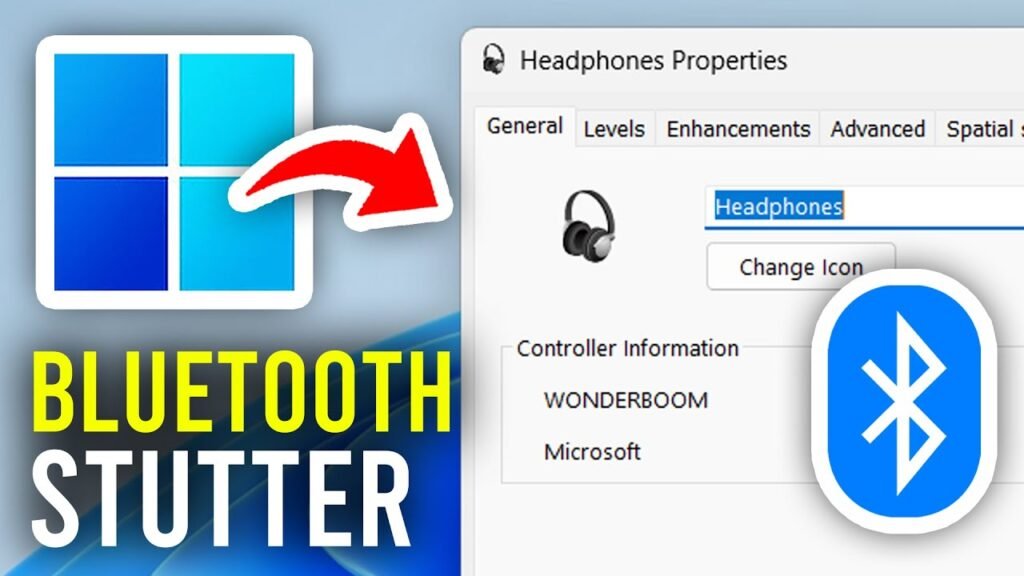

How to Fix Bluetooth Audio Stuttering / Choppy Issue on Windows 11/10: Connecting Bluetooth headphones to a PC only to deal with stuttering, crackling, or audio that cuts in and out like a scratched CD is a frustratingly common issue.
What makes it even more annoying is that those same headphones usually work flawlessly with a smartphone or tablet. Naturally, that makes it seem like Windows is broken. However, Bluetooth audio stuttering on Windows 10 and 11 usually stems from a specific PC-side issue—such as 2.4 GHz Wi-Fi interference, Windows forcing the headset into call mode, aggressive power-saving settings, outdated drivers, or a missing motherboard antenna.
Fortunately, most cases can be resolved without buying new hardware. Here is a complete, step-by-step troubleshooting guide to fix Bluetooth audio stuttering on Windows 11 and Windows 10, organized from the quickest fixes to more advanced solutions.
Why to Fix Bluetooth Audio Stuttering on Windows 11/10?
Choppy Bluetooth sound almost always traces back to one of these core issues:
- Wireless Interference: Bluetooth and 2.4 GHz Wi-Fi share the same frequency band. Your router, wireless mouse, and unshielded USB 3.0 ports all compete with your audio stream.
- Hands-Free Profile Conflicts: Windows automatically downgrades headsets to a lower-quality mono profile when it detects a microphone request, often getting stuck between modes.
- Power Management Caps: Windows turns off or throttles the Bluetooth module to save energy, causing audio drops when the system assumes it is idle.
- Driver Faults: Outdated, missing, or corrupted drivers following a recent Windows update.
- Hardware Signal Constraints: Extended distance, physical obstructions, or missing external Wi-Fi/Bluetooth antennas on desktop motherboards.
Preliminary Checks: Rule Out the Basics First
Before modifying system settings, run through these quick checks to ensure you aren’t trying to patch a hardware issue with software:
- Reduce Physical Distance: Ensure you are within 3 to 5 meters of your PC. Physical obstructions like walls, metal cases, or even your body can degrade the signal.
- Check the Battery: Low headphone batteries can cause erratic performance and audio dropouts long before the low-battery voice alert triggers.
- Disconnect Other Paired Devices: If your earbuds remain actively connected to your phone, they may struggle to maintain a stable bandwidth stream to your PC. Disable Bluetooth on nearby secondary devices.
- Isolate the Hardware: Pair a secondary Bluetooth audio device with your PC. If it stutters too, the issue resides entirely within the PC. If only one pair fails, focus on that device’s firmware or codec compatibility.
Fix 1: Disable Hands-Free Telephony
fix Bluetooth audio stuttering : This single tweak resolves stuttering for most Windows users. Windows uses two primary Bluetooth profiles: A2DP (High-Quality Stereo Audio) and Hands-Free Telephony (Low-Quality Voice Call Mode).
Windows often inappropriately defaults to Hands-Free mode or bounces back and forth, resulting in muffled, crackling, or pitch-dropped audio. Disabling the profile forces Windows to stay on A2DP:
- Press
Windows + Ito launch Settings. - Navigate to Bluetooth & devices > Devices (On Windows 10: Devices > Bluetooth & other devices).
- Scroll down and click More devices and printer settings.
- Right-click your headset in the list and select Properties.
- Switch to the Services tab and uncheck Handsfree Telephony.
- Click Apply, then OK.
- Power your headset off and back on so it reconnects purely using the stereo profile.
Note: Disabling this profile turns off your headset’s built-in microphone in Windows. If you rely on the mic for meetings or voice calls, leave this enabled and move to the subsequent fixes.
Fix 2: Verify Your Wi-Fi Antenna Is Connected
On most desktop motherboards, the onboard Wi-Fi card handles both Wi-Fi and Bluetooth connections through the exact same hardware module.
If your PC is connected via Ethernet, you might have left the included external Wi-Fi antennas in the motherboard box. Without those external antennas, the Bluetooth adapter operates with virtually no range or shielding.
- Check the rear I/O panel of your desktop case for gold-threaded antenna connectors and screw in the included antennas.
- If you rely on a USB Bluetooth dongle, place it on a USB extension cable to move it away from the rear metal case panel and active USB 3.0 ports.
Fix 3: Switch Your Wi-Fi Network to the 5 GHz Band
Since 2.4 GHz Wi-Fi and Bluetooth operate on the exact same spectrum, a router placed near your workstation can easily overwhelm the Bluetooth signal.
To verify if Wi-Fi interference is the culprit, temporarily turn off Wi-Fi on your PC while playing audio. If the stutter stops immediately:
- Connect your PC to your router’s 5 GHz network (often labeled with a
5Gsuffix). - If your router uses a single unified SSID for both bands, log into your router settings page to separate the 2.4 GHz and 5 GHz SSIDs.
- If you use an Ethernet connection, simply turn off the Wi-Fi toggle in Windows.
Fix 4: Prevent Windows from Power-Saving the Bluetooth Adapter
Aggressive Windows power management routines can temporarily shut down or throttle the Bluetooth hardware during subtle pauses or lower audio levels:
- Press
Windows + Xand select Device Manager. - Expand the Bluetooth section.
- Right-click your main Bluetooth adapter (e.g., Intel Wireless Bluetooth, Realtek, or Qualcomm) and choose Properties.
- Select the Power Management tab.
- Uncheck Allow the computer to turn off this device to save power.
- Click OK and restart your computer.
Fix 5: Disable Audio Enhancements
Windows includes native audio processing algorithms designed to enhance sound output, but they frequently introduce playback latency and stuttering over Bluetooth:
- Press
Windows + R, typemmsys.cpl, and press Enter. - On the Playback tab, right-click your Bluetooth device and choose Properties.
- Open the Enhancements tab.
- Check the box for Disable all enhancements (or turn off Audio enhancements if using the newer Windows 11 interface).
- Click Apply and OK.
Fix 6: Lower the Default Audio Format
If your hardware cannot reliably maintain high-bitrate audio streams without buffer underruns, dropping the sample rate slightly provides a rock-solid connection:
- Press
Windows + R, typemmsys.cpl, and press Enter. - Right-click your Bluetooth audio device and select Properties.
- Open the Advanced tab.
- Under Default Format, select 16 bit, 48000 Hz (DVD Quality) or 16 bit, 44100 Hz (CD Quality).
- Click Apply, test your sound, and keep testing lower rates if the issue persists.
Fix 7: Update or Roll Back Your Bluetooth Drivers
A corrupted driver can trigger audio dropouts. Similarly, buggy software updates released by Windows Update can degrade stability.
- Press
Windows + Xand choose Device Manager. - Expand Bluetooth, right-click your main adapter, and select Properties.
- Go to the Driver tab:
- If problems began recently after an update: Click Roll Back Driver.
- If the driver is very old: Click Update driver or visit your motherboard/laptop manufacturer’s support portal directly to download the official OEM driver package.
Fix 8: Run the Built-In Windows Troubleshooter
While simple, the native Windows troubleshooter can reset background services like the Bluetooth Support Service and repair misconfigured parameters:
- Press
Windows + Ito open Settings. - Navigate to System > Troubleshoot > Other troubleshooters (Windows 10: Update & Security > Troubleshoot > Additional troubleshooters).
- Find Bluetooth and click Run.
- Allow the process to complete, then restart your PC.
Fix 9: Re-Pair Your Bluetooth Device
Corrupted pairing keys often lead to connection degradation over time:
- Open Settings > Bluetooth & devices.
- Locate your headset, click the options icon (three dots), and select Remove device.
- Toggle the main Bluetooth switch on your PC to Off.
- Turn off your headset and clear its pairing memory if your device supports it.
- Ensure secondary devices (like your phone) have Bluetooth turned off so they don’t auto-connect.
- Enable Bluetooth on your PC, put your headset into pairing mode, and perform a fresh pairing process.
Fix 10: Disconnect Phone Link and Unpair Secondary Phones
Windows feature utilities—specifically Phone Link—maintain continuous background Bluetooth data exchanges to sync notifications, calls, and texts. This constant traffic can choke audio bandwidth:
- Open Settings > Bluetooth & devices.
- Unpair your mobile phone if it is directly linked to your PC.
- Launch the Phone Link app, access its internal settings, and temporarily remove or unlink your active mobile device to test if playback stabilizes.
Fix 11: Force the SBC Codec via Registry Modification
If your Bluetooth audio sounds unusually slow, pitched lower, or stretched, Windows may be struggling to encode the AAC codec properly over your hardware setup. Forcing Windows to fallback to the universal SBC codec fixes this:
- Press
Windows + R, typeregedit, and hit Enter. - Navigate to:
HKEY_LOCAL_MACHINE\SYSTEM\CurrentControlSet\Services\BthA2dp\Parameters - If the
Parameterskey is missing, right-clickBthA2dp, choose New > Key, and name itParameters. - Right-click inside the right pane, select New > DWORD (32-bit) Value, and name it
BluetoothAacEnable. - Ensure its Value data is set to
0. - Close the Registry Editor and restart your computer.
Fix 12: Change USB Dongle Ports or Upgrade Your Adapter
If you rely on a small USB Bluetooth dongle:
- Avoid USB 3.0 Ports: USB 3.0 ports and unshielded cables emit severe 2.4 GHz radio-frequency interference. Move your dongle to a USB 2.0 port (typically colored black instead of blue).
- Use an Extension Lead: Move the dongle away from the rear metal desktop chassis.
- Upgrade Legacy Dongles: Older Bluetooth 4.0/4.2 adapters lack modern spectrum-hopping capabilities. Upgrading to an inexpensive Bluetooth 5.0, 5.2, or 5.3 adapter dramatically improves connection density and range.
Best Practices for Long-Term Bluetooth Audio Stability
- Minimize 2.4 GHz Traffic: Use 5 GHz Wi-Fi or wired Ethernet whenever possible, and opt for 2.4 GHz wireless mice that include dedicated USB receivers with clear line-of-sight.
- Keep Direct Drivers Updated: Rely on official hardware drivers directly from Intel, Realtek, or your motherboard manufacturer rather than third-party driver-updater programs.
- Acknowledge Technical Limitations: Bluetooth is optimized for low-power consumer listening. For critical tasks like professional audio editing, zero-latency gaming, or music production, a wired connection or a dedicated 2.4 GHz RF wireless headset (with its own USB dongle) will always outperform standard Bluetooth.
Frequently Asked Questions
Why do my headphones work fine on my phone but stutter on my PC?
Smartphones feature tightly integrated antennas, custom audio chipsets, and optimized operating systems built around mobile audio streaming. PCs feature modular components, interference from USB ports, shared Wi-Fi/Bluetooth hardware, and background Windows system processes that create audio bottlenecks.
Why does my sound quality drop drastically when joining a Discord call or Zoom meeting?
Windows switches your Bluetooth device from the A2DP Stereo profile (high quality) to the Hands-Free AG Audio profile (low-bitrate mono) as soon as an app requests the built-in microphone. This is a bandwidth limitation of the Bluetooth standard itself, not a defect.
Will turning off Hands-Free Telephony disable my headset microphone?
Yes. Disabling Hands-Free Telephony turns off the microphone input of the headset in Windows. To talk during calls, you will need to use a standalone desktop mic, a laptop’s built-in mic, or re-enable the profile.
Does upgrading my Bluetooth dongle version help?
Yes. Bluetooth 5.0 and newer protocols offer significantly higher data bandwidth, improved error correction, and better channel-hopping features to bypass local Wi-Fi noise.