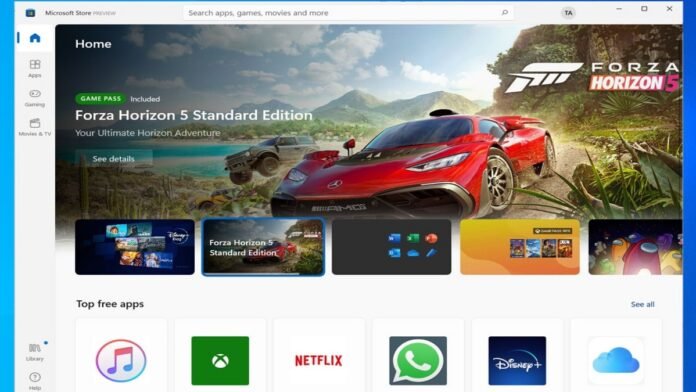

Update Microsoft Store Apps in Windows 11 If They’re Not Updating : For many Windows PC users, Microsoft Store apps are part of everyday use. Like any other software, these apps need regular updates to get the latest features, security improvements, and bug fixes.
However, updating Microsoft Store apps in Windows 11 doesn’t always go smoothly. Sometimes updates fail in the background, while other times they refuse to download or install even when you try updating them manually through the Microsoft Store.
One of the most common problems is the 0x80073CF9 error, although you may also encounter errors such as 0x800706BE or 0x800706BA. In some cases, Windows doesn’t display an error code at all. Instead, the app update simply remains stuck on Pending, with no sign of progress.
After looking into this issue, it turns out that the Microsoft Store itself is not always the problem. A common cause is a stuck runtime or dependency package sitting at the front of the update queue. When that package fails to download or install correctly, it can prevent other Microsoft Store apps from updating as well.
That said, a blocked update queue isn’t the only possible cause. Corrupted Store cache files, damaged app components, Windows Update problems, background services, network issues, and other system-related errors can also stop Microsoft Store apps from updating properly.
If your Microsoft Store apps are not updating in Windows 11, there are several troubleshooting methods worth trying. Based on the most common causes and solutions that have worked for affected users, this guide will walk you through 7 effective fixes to get Microsoft Store app updates working again.
How to Fix Microsoft Store Apps Not Updating in Windows 11
The methods below are in the order I’d try them. The first fix solves it for most people, so don’t skip ahead unless you’ve already tried it.
Method 1: Terminate and Repair the App Runtime Singleton
Windows uses a shared component called Microsoft Windows App Runtime Singleton, and the Store updates that before it touches any of your apps. When it gets stuck, every other update queues behind it and fails with the same error.
You’ll know this is the issue if the Store keeps trying to update something with WindowsAppRuntime in the name before anything else moves.
- Press Windows + I to open Settings.
- Go to Apps > Installed apps and type singleton in the search box.
- Click the three dots beside Microsoft Windows App Runtime Singleton and select Advanced options.
Terminate and Repair the App Runtime Singleton
- Click Terminate, then click Repair. If repair fails, click Reset.
- Open the Microsoft Store, go to Library, and hit Retry on the runtime Update Microsoft Store Apps in Windows 11 first.
- Once that one goes through, retry your other stuck apps one at a time.
Retrying them individually is worth the extra clicks. Hitting Update Microsoft Store Apps in Windows 11 all just puts them straight back into the same failing queue.
Note: Some people don’t have Singleton listed in Installed apps at all. If yours isn’t there, install the runtime yourself. Download the latest Windows App SDK runtime from Microsoft’s downloads page, close everything and restart your PC first, then install it. Open the Store afterwards and retry each stuck app one by one.
Method 2: Reset the Microsoft Store Cache Using WSReset
This clears the Store’s cached data. It doesn’t touch your installed apps and it won’t sign you out. Here is how use it:
- Press Windows + R to open the Run dialog.
- Type wsreset.exe and press Enter.
- A blank Command Prompt window opens. Leave it alone until it closes by itself, which takes about 10 to 30 seconds.
- The Store should open on its own once it’s done.
- Go to Library and click Get updates.
Method 3: Run the Windows Store Apps Troubleshooter
- Press Windows + I to open Settings.
- Go to System > Troubleshoot > Other troubleshooters.
- Find Windows Store Apps and click Run.
- Apply whatever it suggests, then restart your PC.
Method 4: Repair Microsoft Store and Your System Files
- Go to Settings > Apps > Installed apps, find Microsoft Store, click the three dots, and select Advanced options.
- Click Repair and wait for the tick to appear.
- If that didn’t fix it, don’t hit Reset yet. Search for PowerShell in the Start menu, right-click Windows PowerShell, and select Run as administrator. Use the built-in PowerShell console here rather than Windows Terminal.
- Run these three commands one at a time, letting each finish before you start the next:
dism.exe /online /cleanup-image /restorehealth
dism.exe /online /cleanup-image /startcomponentcleanup
sfc /scannow
- Restart your PC.
- Go back to Microsoft Store > Advanced options and run Repair, then Reset.
- Restart again and test your updates.
Method 5: Change Your DNS and Check Your Security Software
Security software, DNS and network hardware sometimes block Store Update Microsoft Store Apps in Windows 11 . Windows delivers these updates as .cab files, and some firewalls block that file type outright without saying a word about it.
Check your antivirus and VPN
Temporarily disable any third-party antivirus and any VPN, then retry your Update Microsoft Store Apps in Windows 11. If that fixes it, add Microsoft Store and Windows Update Microsoft Store Apps in Windows 11 to your security software’s exclusions rather than leaving your protection off.
Switch to Google’s DNS
- Search for View network connections and open it.
- Right-click your active connection and select Properties.
- Select Internet Protocol Version 4 (TCP/IPv4) and click Properties.
- Select Use the following DNS server addresses.
- Enter 8.8.8.8 as the preferred server and 8.8.4.4 as the alternate.
- Click OK and retry your updates.
Method 6: Test With a New User Account
Do this before you consider reinstalling anything. It tells you whether the problem is your whole system or just your profile:
- Go to Settings > Accounts > Other users and click Add account.
- Create a local account and give it administrator rights.
- Sign out and sign into the new account.
- Open the Microsoft Store and try updating an app.
If Update Microsoft Store Apps in Windows 11 work there, your original profile is corrupted and moving your files to the new account is faster than repairing it. If they fail there too, the problem is system-wide and last solution may be your next step.
Method 7: Perform an In-Place Upgrade
An in-place upgrade reinstalls Windows over itself and keeps your files and apps. It’s the one that finally worked for people who’d spent days on this:
- Make sure you have at least 40GB free on your C: drive. Without that you’re looking at a clean install instead.
- Download the Media Creation Tool from Microsoft’s official Windows 11 download page.
- Run it and follow the prompts, leaving the options at their defaults.
- On the final screen, check that the option to keep your personal files and apps is selected before you continue.
- Let it run. It takes a while and your PC will restart a few times.
Note: Your files and apps survive but some custom settings don’t. Custom keyboard layouts and any registry tweaks you’ve made will need redoing, so write those down before you start.
What to Do If the Microsoft Store Won’t Open At All
This usually happens right after a reset goes wrong. The Store disappears from Installed apps, so you can’t repair it, reset it, or launch it. It’s a different problem from apps not updating, and here some fixes for it:
- Re-register the Store using PowerShell. Open PowerShell as administrator and run the command below, then restart your PC. This points Windows back at the Store’s existing files and registers them again.
Get-AppxPackage -allusers Microsoft.WindowsStore | Foreach {Add-AppxPackage -DisableDevelopmentMode -Register "$($_.InstallLocation)\AppXManifest.xml"}
- Set the Store Install Service to Automatic. Press Windows + R, type services.msc, and press Enter. Find Microsoft Store Install Service, double-click it, set Startup type to Automatic, and click Start if it isn’t already running. Click Apply and OK, then restart. This has brought the Store back for people where the PowerShell command alone did nothing.
- Repair your system files. If the Store went missing because of file corruption, re-registering it won’t hold until you fix what’s underneath. Run the DISM and SFC commands from Method 4.
Final Thoughts
When Microsoft Store apps stop updating in Windows 11, it’s rarely the Store itself that’s broken. Most of the time it’s the App Runtime package blocking the queue, so start with the first solution I covered before you try anything else.
That said, if the runtime isn’t your problem, work your way down the rest of the methods. Just make sure you try Repair before Reset on the Store. A lot of the people who end up with no Store at all got there by resetting it on a system that already had corrupted files.
Frequently Asked Questions
What does error 0x80073CF9 mean?
It’s a generic Store installation failure. In most cases it points to a stuck App Runtime package or a corrupted Store cache rather than anything wrong with the app you’re trying to Update Microsoft Store Apps in Windows 11.
Why can I install new apps but not Update Microsoft Store Apps in Windows 11 existing ones?
That usually means a runtime component is stuck partway through updating itself. New installs take a different path and go through fine, while your Update Microsoft Store Apps in Windows 11 queue behind the broken package.
Will resetting the Microsoft Store delete my installed apps?
No. It clears the Store’s own cache, settings, and sign-in data. Your installed apps and purchase history are tied to your Microsoft account and stay put.
Why did the Microsoft Store disappear after I reset it?
Reset can fail partway through on a system with corrupted files, leaving the Store deregistered and invisible in Settings. Re-registering it through PowerShell and setting Microsoft Store Install Service to Automatic usually brings it back.
Does an in-place upgrade delete my files?
No, as long as you select the option to keep personal files and apps. Some custom settings like keyboard layouts and registry tweaks do get reset, so note those down first.